Picture this: you log into your WordPress dashboard, and instead of a sleek overview of your site’s performance, you’re met with a chaotic jumble of widgets vying for your attention — some useful, many not. If navigating this clutter feels more overwhelming than productive, it might be time to consider how to remove WordPress widgets that add little to your workflow. The ability to manage WordPress widgets effectively not only makes for a cleaner dashboard but also allows you to focus on the metrics and tools that truly drive your content forward.
Eliminating unnecessary widgets is more than just an aesthetic choice; it streamlines your workflow and enhances your overall efficiency. Whether you prefer to do this manually, by simply hiding unwanted features, or opting for a more permanent solution through code, the steps are straightforward. Customizing your WordPress dashboard to suit your specific needs can significantly improve your site management experience, making it easier to keep your focus on what really matters — delivering quality content to your audience.
Identifying Unnecessary WordPress Dashboard Widgets
Sometimes, the WordPress dashboard feels more cluttered than helpful. Many users often wonder what purpose each widget serves. A quick glance can reveal widgets such as ‘Quick Draft’, ‘WordPress News’, or plugin-specific elements that clutter your workspace. If they don’t contribute to your workflow or provide value, they may ultimately detract from your productivity.
Consider this scenario: you log into your dashboard and spend valuable minutes sorting through a jumble of widgets that you rarely use. This can create a mental block that hinders your creativity. Take a moment to assess which widgets truly assist in managing your site and which ones are just taking up space. By streamlining what you see, you can clear the way for innovation and focus.
The Power of Customization in Your WordPress Dashboard
What if you could transform your WordPress dashboard into a personalized control center that caters specifically to your needs? Customizing your dashboard enhances not only aesthetics but also overall efficiency. For example, if you primarily write blog posts, you might benefit from focusing on the ‘Drafts’ widget while removing less relevant features like ‘Site Health’ or ‘At a Glance’.
By taking advantage of the Screen Options feature, you can easily select which widgets stay visible or become hidden. Clicking on the ‘Screen Options’ tab lets you uncheck items that clutter your view. This simple act of decluttering can breathe new life into your workflow, allowing you to access tools and information that matter most in a few swift clicks.

Completely Removing Widgets: A Cleaner Approach for Your Workflow
If hiding widgets isn’t enough, why not consider complete removal for a more permanent solution? For those comfortable diving into the code, editing the `functions.php` file of your theme or using a site-specific plugin can achieve a streamlined dashboard. This method ensures that unnecessary widgets are entirely eradicated and cannot be toggled back on by other users.
Here’s a handy code snippet to target unwanted widgets:
“`php
function clear_dashboard_widgets() {
global $wp_meta_boxes;
unset($wp_meta_boxes[‘dashboard’][‘side’][‘core’][‘dashboard_quick_press’]);
unset($wp_meta_boxes[‘dashboard’][‘normal’][‘core’][‘dashboard_incoming_links’]);
}
add_action(‘wp_dashboard_setup’, ‘clear_dashboard_widgets’);
“`
This code effectively clears specified dashboard items, providing a personalized dashboard that reflects your working style. It’s clean, efficient, and gives you back control over what you see.

Frequently Asked Questions
How can I remove WordPress widgets from my dashboard?
To remove WordPress widgets from your dashboard, you can either hide them using the ‘Screen Options’ tab or remove them programmatically by adding a code snippet to your theme’s `functions.php` file. For hiding, click on ‘Screen Options’ and uncheck the unwanted widgets. For permanent removal, use the provided code: `unset($wp_meta_boxes[‘dashboard’][‘side’][‘core’][‘YOUR_WIDGET’]);` in your functions.php.
What are some WordPress dashboard tips for decluttering?
To declutter your WordPress dashboard, consider hiding non-essential widgets using the ‘Screen Options’ menu. Programmatic removal is also effective; add a snippet to your `functions.php` file to clear unwanted widgets entirely. Regularly manage WordPress widgets to keep your dashboard focused on what you need.
Can I customize my WordPress dashboard to show only specific widgets?
Yes, you can customize your WordPress dashboard by using the ‘Screen Options’ to hide unwanted widgets temporarily or by programmatically removing them via code in the `functions.php` file. This allows you to create a streamlined workspace tailored to your preferences.
• The WordPress dashboard serves as your website’s command center, filled with various widgets that can improve functionality. However, not all widgets are necessary for every user, which can lead to a crowded interface.
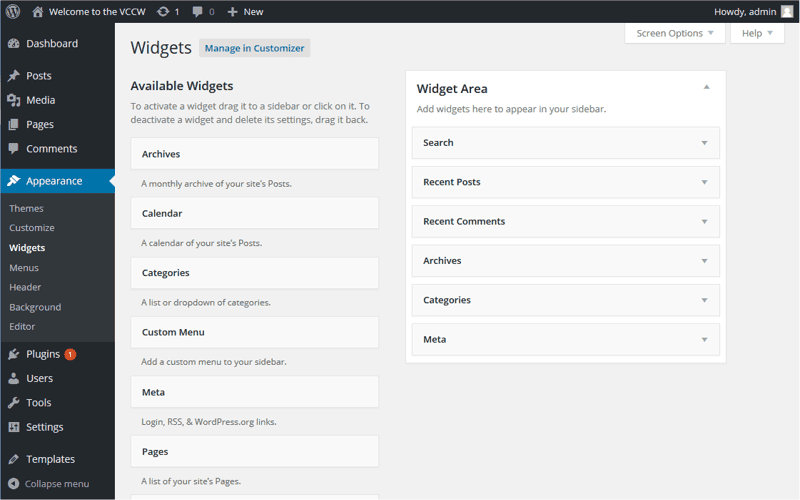
• Understanding how widgets work is crucial since they can be customized through the Appearance section of your dashboard. You can manage both default and plugin-provided widgets to maintain a tidy workspace.
• If you’re looking for a simple way to declutter your dashboard, hiding unused widgets is a good start. Just log in, find the Screen Options button, and uncheck the boxes next to the widgets you don’t want to see.
• For a more permanent solution, consider programmatically removing unwanted widgets using a code snippet in your theme’s functions.php file. This way, the widgets are permanently hidden and cannot be reactivated by others.
• Want to take user permissions into account? You can adjust your code so that only users who lack administrative rights can see certain widgets, helping to ensure that the dashboard remains clean and focused for everyone.
• Ultimately, a streamlined dashboard not only enhances your WordPress experience but also contributes to overall website efficiency. Keeping it organized allows you to prioritize creating great content without distractions.
• Interested in further optimizing your WordPress site? Check out additional posts that explore topics like security enhancements and performance improvements.